How to Fix IPTV Buffering: 9 Simple Fixes That Work
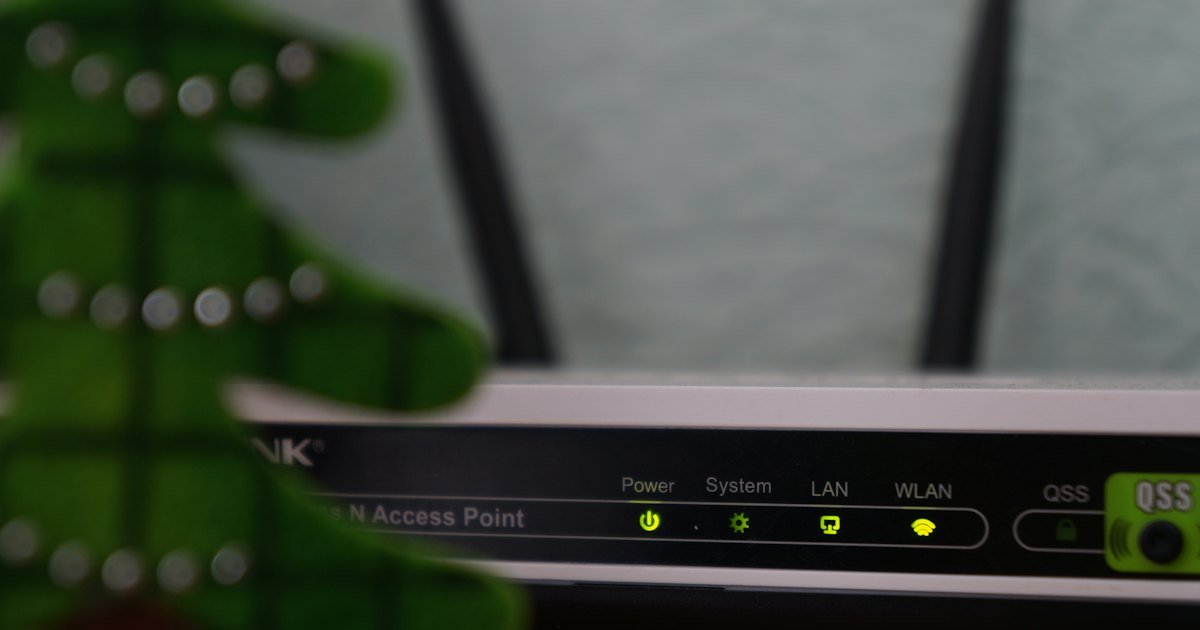
Buffering is the most common complaint with any IPTV service – and in most cases the cause is at home: the internet connection, the Wi-Fi or the device. Here are nine fixes that solve most buffering problems with Marinios IPTV and other IPTV subscriptions.
1. Test your internet speed
Run a test on Speedtest.net on the same device you use to watch. You need about 15 Mbps for HD and 25 Mbps for 4K, per device.
2. Restart your router and device
Turn off your router and TV/box for 30 seconds. This clears temporary problems and often fixes buffering immediately.
3. Use an Ethernet cable
Wi-Fi can be slowed down by walls and other devices. A network cable between your router and TV box gives a much more stable connection.
4. Move closer to the router (or use 5 GHz)
If you must use Wi-Fi, connect to the 5 GHz network and keep your device as close to the router as possible.
5. Stop other downloads
Large downloads, game updates or other people streaming at the same time can use up your bandwidth.
6. Clear the app cache
On Android and Firestick: Settings → Applications → your IPTV app → Clear cache. Then restart the app.
7. Lower the quality
If your connection is slow, switch from the 4K version of a channel to the FHD or HD version.
8. Try a different app or player setting
Some apps let you change the video player or buffer size. Changing from the default player often helps – or try another app from our recommended apps list.
9. Try a VPN – or turn it off
Some internet providers slow down streaming traffic, and a VPN can help. On the other hand, a slow VPN server can cause buffering – so if you already use one, try turning it off.
Why does IPTV buffer?
IPTV streams video over your internet connection in real time. Your device downloads a few seconds of video ahead (the "buffer"). If your connection can't keep up – because it's too slow, unstable or shared with other devices – the buffer runs out and the picture freezes. Understanding this makes it much easier to find the cause.
The most common causes are:
- weak Wi-Fi signal, especially through walls or floors;
- too many devices using the internet at the same time;
- a slow internet plan, or slow speeds at peak times;
- a device that is too old or has too little free memory;
- an outdated IPTV app or the wrong player settings;
- an internet provider that slows down streaming traffic.
Recommended internet speed for IPTV
| Quality | FCC minimum* | Marinios IPTV recommends |
|---|---|---|
| SD | 3–4 Mbps | 8 Mbps |
| HD (720p / 1080p) | 5–8 Mbps | 15 Mbps |
| 4K (2160p) | 25 Mbps | 25–35 Mbps |
*Minimum download speed for one activity at a time, from the FCC broadband speed guide. Our recommendation is higher to leave room for other devices on your network. Remember to add up the speed for every device watching at the same time.
Fixes for Firestick and Android boxes
- Close apps running in the background, or restart the device.
- Free up storage: uninstall apps you don't use and clear the cache of your IPTV app.
- Turn off "Data monitoring" in Firestick settings (Settings → Preferences → Data monitoring).
- Use a Firestick 4K or newer model – older models can struggle with HD and 4K channels.
Fixes for Smart TVs
- Update the TV's software (Settings → Support → Software update).
- Connect the TV to your router with a network cable if possible.
- Turn the TV fully off at the wall for one minute to clear its memory.
Buffering only during big matches?
If streams are fine most of the time but buffer during big games, the problem is often peak-time congestion on your internet line, when everyone in your area is online. A wired connection, a lower quality setting (FHD instead of 4K) and pausing other downloads all help. If a specific sports channel is still buffering, tell our team the channel name – we can suggest an alternative source.
Quick buffering checklist
✓ Speed test done ✓ Router restarted ✓ Cable instead of Wi-Fi ✓ Other downloads paused ✓ App cache cleared ✓ App updated ✓ Quality lowered ✓ Player changed ✓ VPN tested
When to upgrade your equipment
If you have tried every fix and still get buffering, your equipment may be the problem. Routers older than about five years often can't handle several HD or 4K streams at once, and older streaming sticks may not support the latest apps. A newer router, a mesh Wi-Fi system for larger homes, or a recent Firestick 4K or Android TV box can make a big difference. Before you buy anything, ask our support team – we will help you find the real cause first.
Still buffering?
If none of these fixes work, contact our 24/7 support team on WhatsApp with the channel name and your device. Read more in what to do if you have a problem with your subscription.
Frequently asked questions
Why does my IPTV keep buffering?
Usually because of a slow or unstable internet connection, weak Wi-Fi, other downloads on your network or an outdated app.
What internet speed do I need for IPTV?
About 15 Mbps for HD and 25 Mbps for 4K per device.
Does an Ethernet cable help IPTV buffering?
Yes. A wired connection is usually much more stable than Wi-Fi.
Can a VPN fix IPTV buffering?
Sometimes. If your internet provider slows down streaming, a fast VPN can help. But a slow VPN server can also cause buffering, so test with and without it.
Why does IPTV buffer only in the evening?
Evenings are peak time on most internet lines. Use a wired connection, lower the quality and pause other downloads during busy times.